Maintain Inactive Employees
After you delete an employee from employee list, the record still remains in WFO Live as an inactive employee.
NOTE: You can select
an employee to activate again so that they can be considered again for
working, or drop the employee permanently.
What do you want to do?
Tasks in this Topic Include:
Related Tasks:
- Set Open / Close Days
- Setting Up Exception Codes
- Employee Templates
- Maintain Employee List
- Exception Calendar and Meeting Planner
- Generate Rosters
- Change Rosters - Inbound Calls
- Generate Reports
- Generate Employee Reports
- Generate Charts
Activate an Inactive Employee
To activate an inactive employee:
- Select Employees > Employee List from the left-navigation menu.
- Select Inactive from the Status drop-down menu.
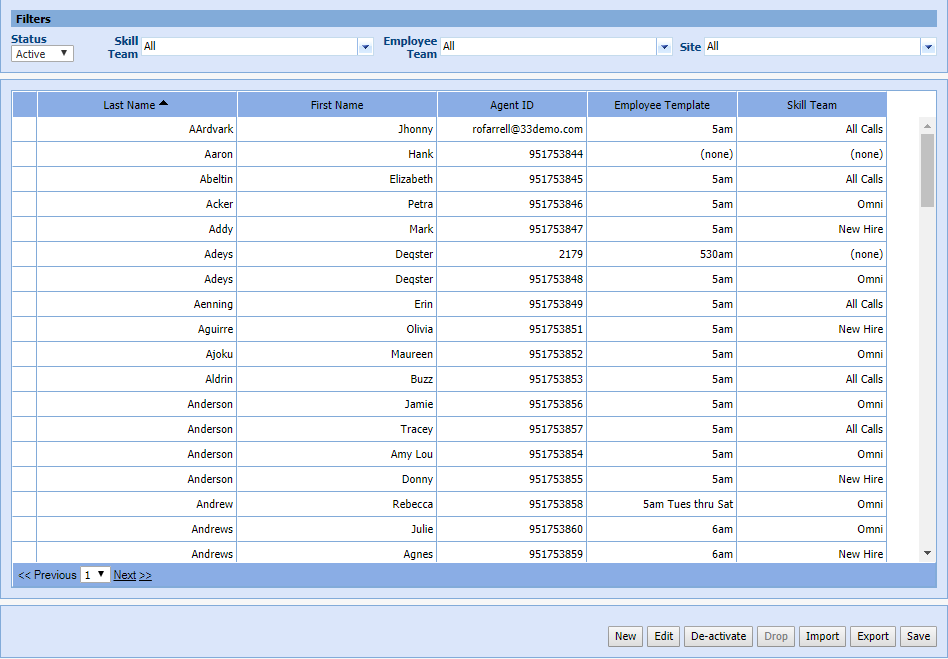
- Highlight the employee to activate.
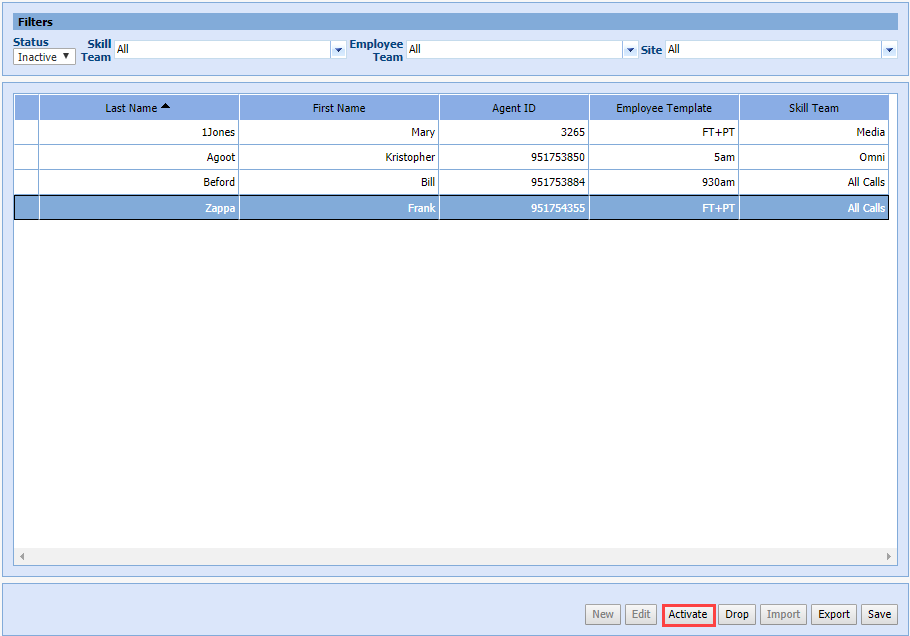
- Select Activate.
Drop an Employee
To remove an employee permanently:
- Select Employee > Employee List from the left-navigation menu.
- Select Inactive from the Status drop-down menu.
- Highlight the employee to drop.
- Select Drop.
NOTE: A confirmation window
is displayed.

- Select one of the following:
- Select Yes to delete the employee permanently from the employee list.
- Select No to cancel the process.